
Comparing picks
You can show the picks of other files next to your own, for example to compare the picks of several people for the same profile, or your picks of the Moho with your picks of a slab. Compared picks are drawn as dashed lines and cannot be edited.
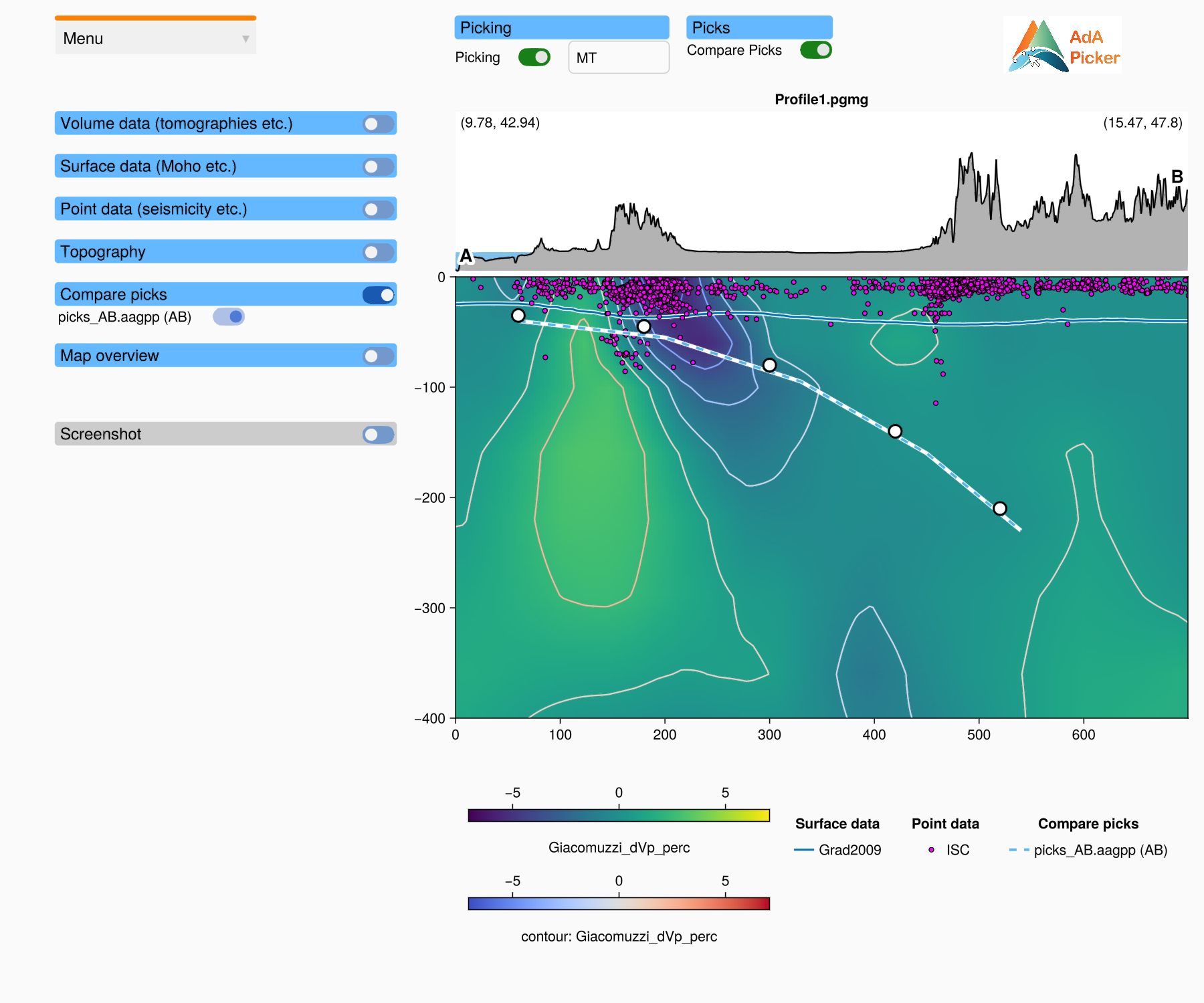
Showing picks of another file
Load the profile.
Choose Menu → Load Compare Picks and choose a pick file (
.aagpp,.csvor.jld2).Repeat for more files.
Each file gets:
a dashed line in its own colour in the profile axis,
an entry with the file name (and the user stored in the file) in the Compare picks panel, with a toggle that shows or hides this line,
an entry in the Compare picks legend below the plot.
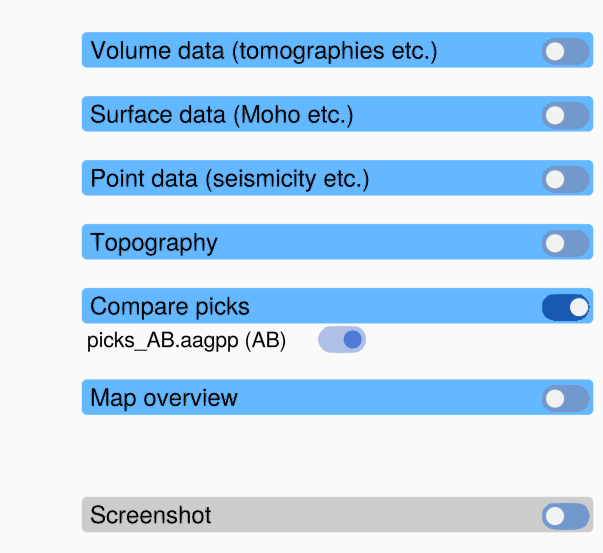
The Compare Picks toggle at the top of the window shows or hides all compared picks at once. A line is visible while both its own toggle and the Compare Picks toggle are on. Loading a file switches the Compare Picks toggle on.
A file that is already shown is not loaded a second time.
Picks of another profile
Unlike Load Picks, Load Compare Picks also shows picks that were made on another profile, because they may still be useful (for example on a profile that runs close by). Their entry in the panel gets a red background, and a warning is logged in the REPL. Their coordinates are drawn as they are: the distance along their profile is drawn as the distance along the loaded profile.
When compared picks are removed
Compared picks belong to the loaded profile. They are removed when you load another profile. They are stored in a saved state (Menu → Save State) and restored with it.
Making compared picks editable
Compared picks cannot be edited. To continue working on the picks of a file, load it with Menu → Load Picks instead. This replaces your current picks.