
Picking
A pick is a point that you place on the profile, for example on the Moho or the top of a slab. Your picks are drawn as white circles with a black outline. They are kept in the order in which you add them.
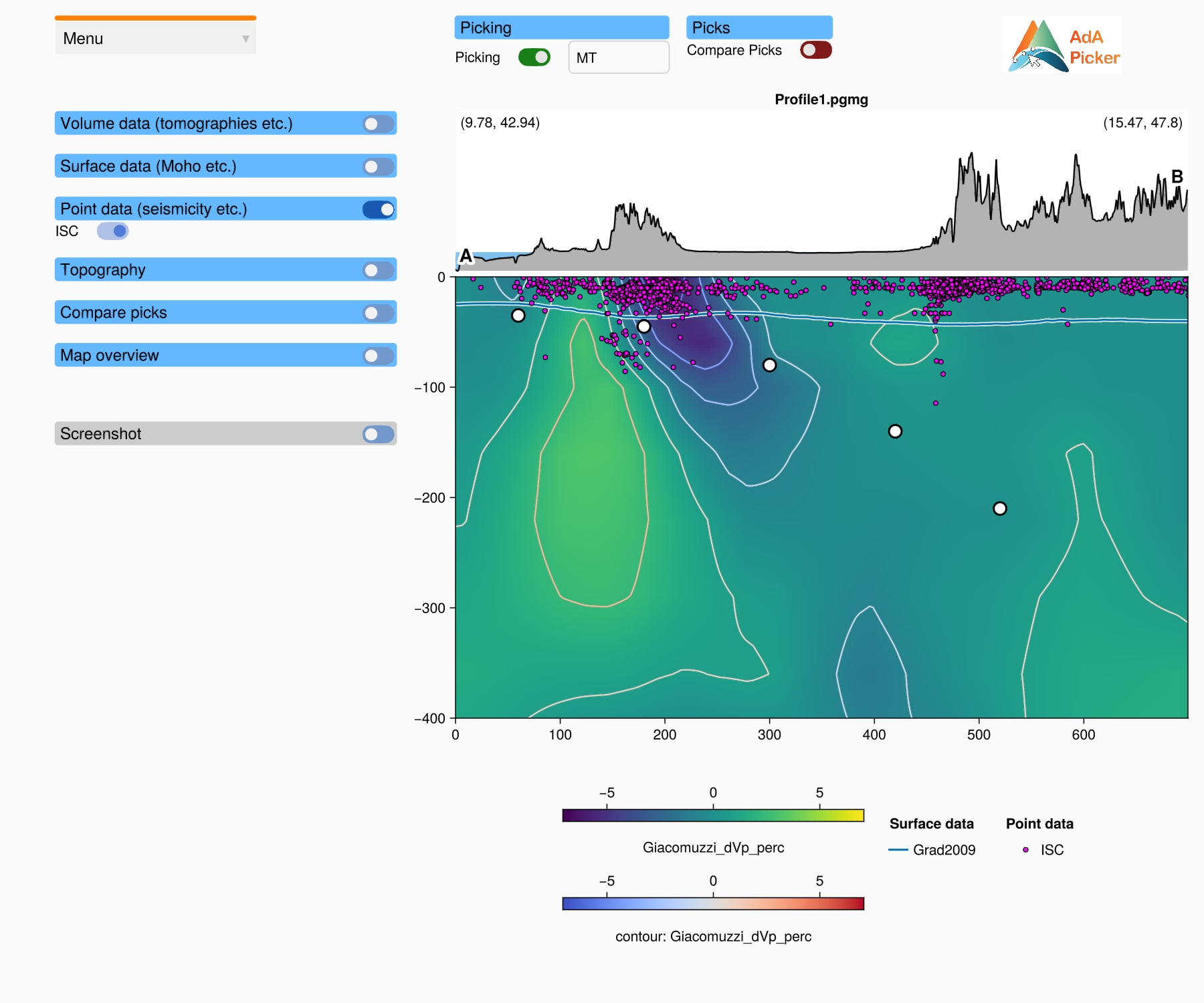
Step by step
Load a profile (Menu → Load Profile), or open the window with a profile file.
Enter your name. Click the User name field at the top, type your name or initials and press Enter. The name is stored with the picks when you save them, so that picks of different people can be told apart.
Switch picking on. Click the Picking toggle. It turns green.
Add picks. Hold the A key and click into the profile axis. A pick is added at the mouse position.
Correct picks.
To move a pick, click on it and drag it to the new position. Release the mouse button to drop it.
To remove a pick, hold the D key and click on it.
Save the picks with Menu → Save Picks (see Saving picks).
Switch picking off when you are done, so that you do not move picks by accident while you zoom and pan.
Mouse and keys
Picking only works while the Picking toggle is on, and only inside the profile axis.
| Mouse / keys | Action |
|---|---|
| A + left click | add a pick at the mouse position |
| D + left click on a pick | remove this pick |
| left click on a pick and drag | move the pick |
Holding Ctrl in addition to A or D is allowed.
Clicks that do not hit a pick, and all clicks while picking is off, go to the axis as usual (rectangle zoom, pan, reset; see Zooming and panning). So you can zoom in to pick precisely and zoom out again without switching picking off.
Pick in order
The picks are saved in the order in which you added them, not sorted by distance. If you want a line from one end of the profile to the other, add the picks from one end to the other. A pick that you move keeps its place in the order.
The window must have the keyboard focus
The A and D keys only reach the picker while its window is the active window. Click once into the window (for example on an empty spot) if the keys seem to do nothing. Also make sure the cursor is not in a text field: while a text field is active, the keys type into it.
What is stored with the picks
On a vertical profile each pick has:
x: the distance along the profile (km),depth: the depth (km, negative downward),lon,lat: the longitude and latitude, interpolated along the profile.
In addition, the pick file stores your user name, the date, the name of the profile file, the type of the profile (vertical or horizontal) and the coordinates of its start and end point. These are used to check that picks belong to the loaded profile when you load them again.
On a horizontal slice, picks are made in the longitude / latitude plane; see Horizontal slices.
Picks and profiles
Picks belong to one profile:
When you load another profile, the picks are removed. Save them first.
Load Picks accepts picks that were made on another profile of the same type (other start and end point, or other slice depth). A red warning is then shown below the Picking label and logged in the REPL, so you can check the picks. It disappears when you save the picks or load another profile.
Picks of a vertical profile are not loaded on a horizontal slice, and picks of a horizontal slice are not loaded on a vertical profile (a warning is logged). The type is stored in the pick file as
profile_type; files that do not have it are taken as vertical. Without a loaded profile nothing is loaded.On a horizontal slice, picks of another slice are saved with the depth of the loaded slice.
Save Picks assigns the picks to the loaded profile, the current user name and the current time, whatever profile they were loaded from.
To see picks of another profile anyway, use Load Compare Picks (see Comparing picks).