
Getting started
This page shows how to open the picker window and how to load a profile into it.
What you need
Julia 1.10 or newer with AdriaArrayGeometryPicker.jl installed (see Installation).
A computer with OpenGL support. GLMakie opens a native window, so the picker does not run in a browser or on a server without a display.
A profile file (
.pgmg). A profile file is a JLD2 file with one GeophysicalModelGeneratorProfileDataobject, made with GeophysicalModelGenerator.jl. It is either a vertical cross-section or a horizontal slice at a fixed depth. The package comes with a demo profile:juliajoinpath(pkgdir(AdriaArrayGeometryPicker), "assets", "Profile1.pgmg")
Opening the window
geometry_picker opens the window. You can call it in three ways:
using AdriaArrayGeometryPicker

geometry_picker()                       # 1) empty window; load a profile from the menu
geometry_picker("profile.pgmg")         # 2) window with a profile
geometry_picker("my_state.aagps")       # 3) window with a saved state (profile, settings, picks)
The picker recognises a file by its content, not by its extension. A saved state of the window is restored. Every other file is loaded as a profile. If the file does not exist, the call throws an ArgumentError.
The first start takes a while (up to a minute or two), because Julia compiles GLMakie. Later starts in the same Julia session are fast.
From the REPL
In the REPL, geometry_picker opens the window and returns right away. The REPL stays usable, and the return value (the session) gives you access to the picks and settings of the window:
session = geometry_picker("profile.pgmg")From the command line or a script
From a script, or with julia -e, the call waits until you close the window. Otherwise Julia would exit and close the window right away. Run this from the package folder:
julia --project -e "using AdriaArrayGeometryPicker; geometry_picker(\"profile.pgmg\")"You can change this behaviour with the keyword wait: geometry_picker(path; wait = true) blocks in the REPL as well, and wait = false returns right away in a script.
Loading a profile from the menu
If the window is empty, or if you want to switch to another profile:
Click Menu (top left) and choose Load Profile.
Choose a
.pgmgfile in the file dialog.
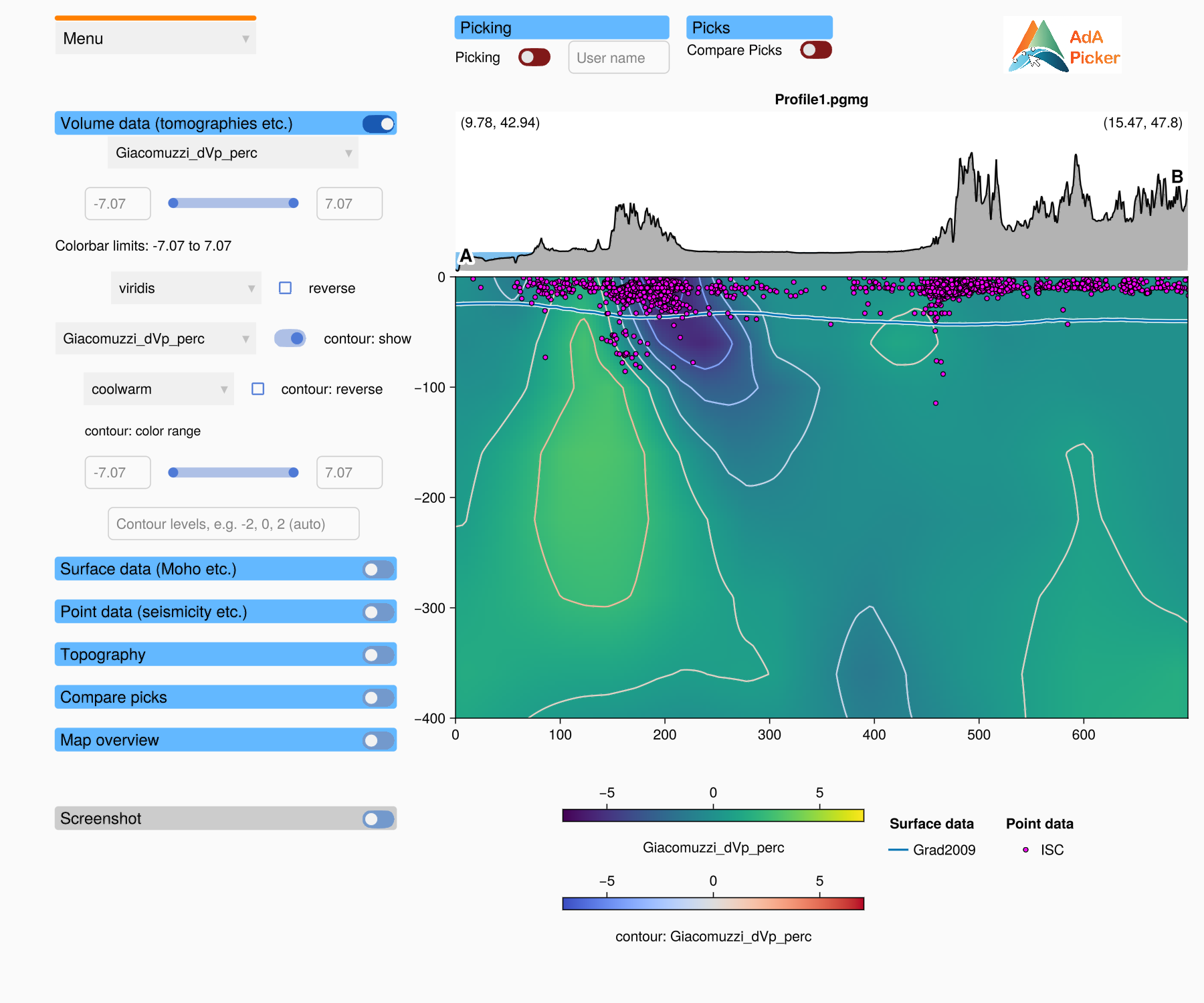
The window fills with the data of the profile. The REPL logs where the profile starts and ends, for example:
[ Info: Loaded profile from (9.78, 42.94) to (15.47, 47.8)Loading a profile removes the picks
Picks belong to one profile. When you load another profile, the current picks and the compared picks are removed. Save your picks first (Menu → Save Picks), or save the whole state (Menu → Save State).
Next steps
The window explains the parts of the window and how to zoom and pan.
Data panels explains the controls on the left.
Picking explains how to make picks.
Files: picks, states, screenshots explains how to save your work.